Staff roles & permissions
Roles decide what each person on your team can see and do. This page expands the short overview in Setting up your clinic into a reference you can use when you're deciding who gets access to what.
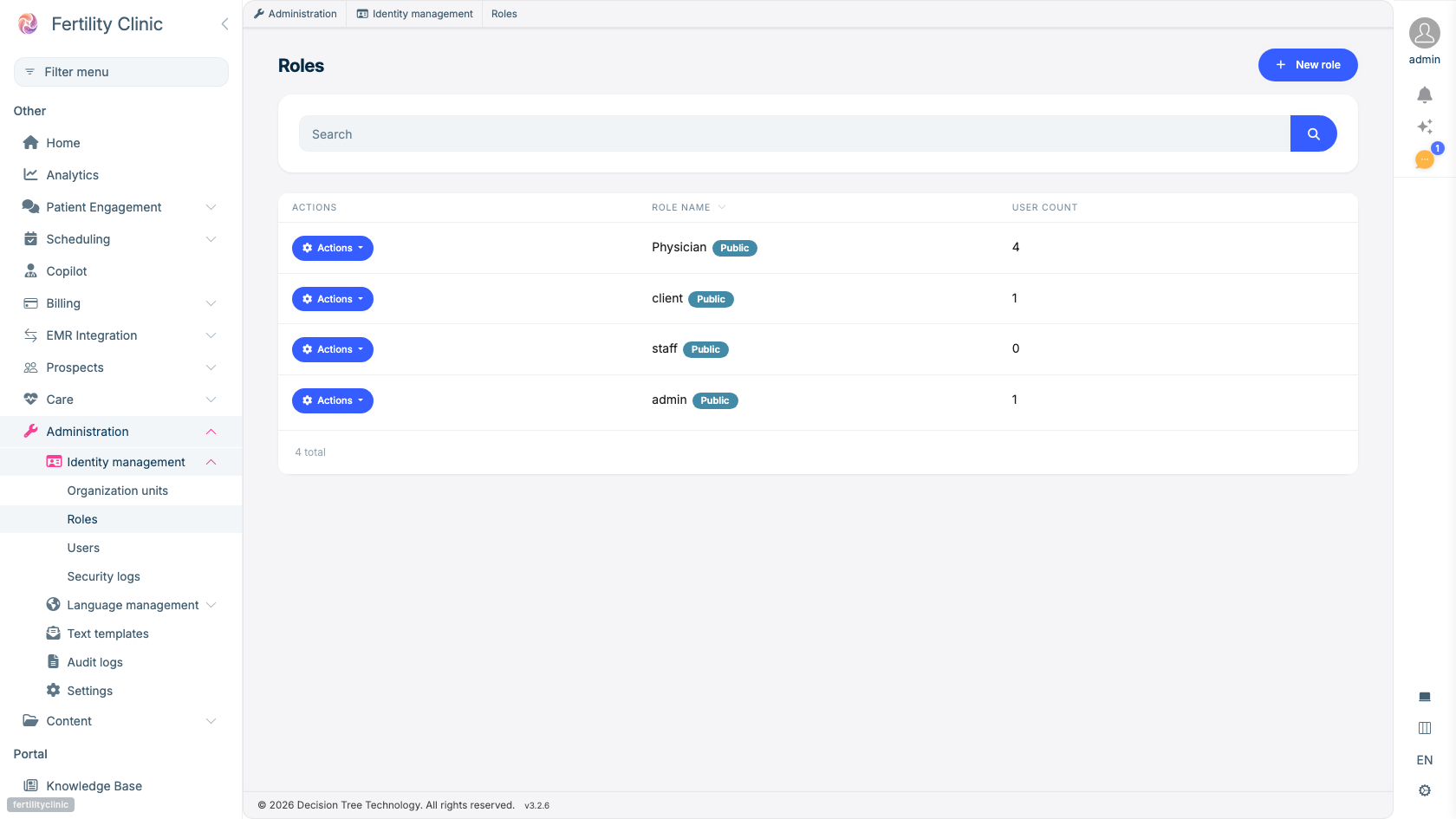
- Roles live under Administration → Identity management.
- Each role bundles the permissions for a job — Physician, staff, admin.
- Open Actions → Permissions to tune exactly what a role can do.
- See at a glance how many people hold each role.
Roles group permissions
An administrator invites staff members and assigns each one a role. A role is a bundle of permissions — the individual controls that unlock a part of the portal. Rather than granting permissions one at a time, you assign a role and the person inherits everything it includes.
What permissions control
Permissions are organized by capability area. The table below maps each area to the work it gates and the operational guide that covers it.
| Capability area | The permission controls… | Guide |
|---|---|---|
| Referrals | Reviewing, confirming, rejecting, and retrying referrals in the inbox. | Referrals workflow |
| Prospects & outreach | Working the funnel — logging contact attempts, moving stages, adding notes. | Prospect management & outreach |
| Scheduling & booking | Publishing bookable availability and creating or cancelling bookings. | Scheduling & booking |
| Consent | Viewing a patient's channel consent and granting or revoking it on their behalf. | Consent & patient privacy |
| Messaging & AI | Sending messages, using the AI review queue, and sending bulk messages. | Patient messaging & SMS |
| Conversations | Opening the shared conversation worklist and the staff attention feed. | Patient messaging & SMS |
| Content & FAQ | Authoring the patient-facing FAQ, and publishing pages and posts. | Content & FAQ |
| Knowledge base | Curating the approved materials the assistant answers from. | Knowledge base |
| Clinic administration | Branding, staff and roles, and clinic settings. | Setting up your clinic |
The conversation worklist and the secure-message list are gated separately: a staff member who can see one does not automatically get the other.
Plans gate features too
A permission only takes effect when the underlying feature is enabled for your clinic's plan. A staff member can hold the Consent permission, but if consent management isn't part of your plan the screens won't appear. When someone can't see a feature you expect them to have, check both their role's permissions and whether the feature is enabled for your clinic.
Patients and prospects have roles too
Two of the roles in your clinic aren't staff:
- Patients signed in to the portal can read your FAQ, message your team, see documents shared with them, and read their own care record.
- Prospects — referred, not yet a patient — can only view their own referral and submit details you've asked for.
Patients are deliberately not given access to the scheduling calendar. It lists every booking with patient names, so opening it to patients would expose other patients' appointments.
New permissions after an update
When a Fertiligent update introduces a new permission, it is applied to your clinic's existing roles as part of that update — you don't need to recreate a role or re-enable anything for it to appear. Review new permissions after an update to confirm they landed on the roles you intend, and only those.
Start people on the narrowest role that covers their work and widen it if they need more. It's easier to add access than to discover later that too many people could see sensitive records.
Availability
Roles and permissions are available to every clinic. Which specific permissions appear depends on the features enabled for your plan.